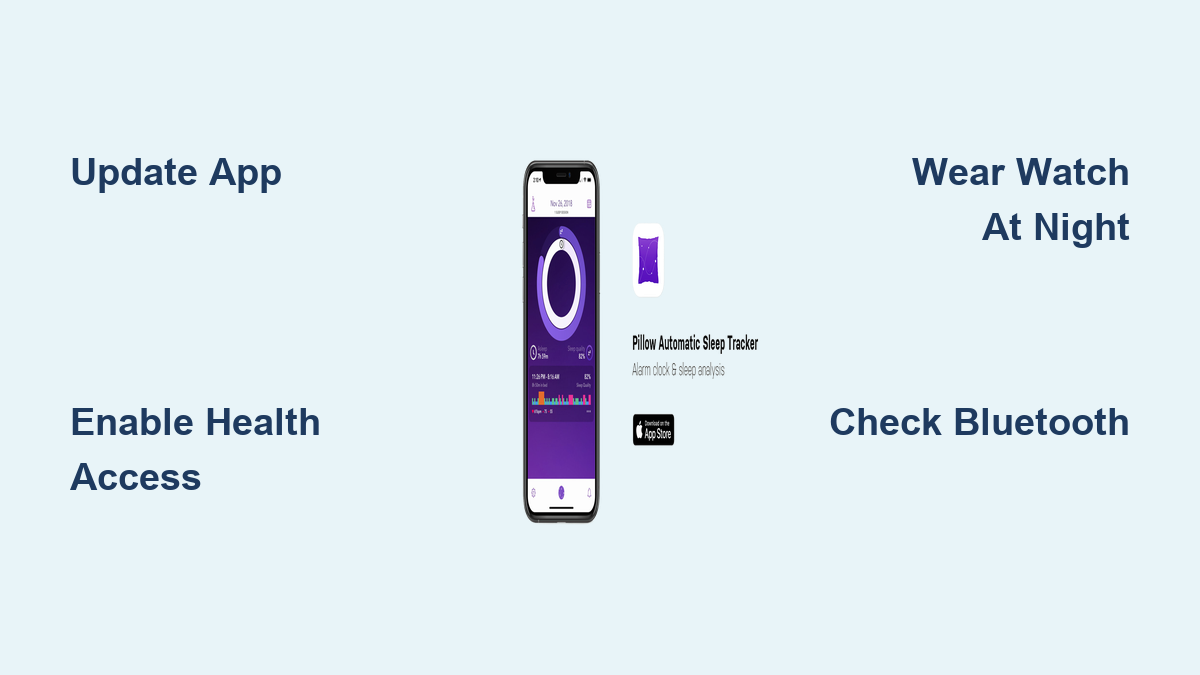
Fix Pillow App Not Recording Sleep
You wake up, grab your iPhone, and open the Pillow app expecting to see your sleep analysis, only to find a frustrating message: “Insufficient data for sleep detection.” You wore your Apple Watch all night. You didn’t change anything. So why isn’t Pillow recording your sleep?
The issue usually comes down to one simple truth: Pillow can’t access the health data it needs to analyze your sleep. Whether it is a permissions glitch, a connectivity hiccup, or a forgotten passcode, these small oversights can break the entire tracking chain. The good news? Most fixes are quick and easy.
In this guide, you will learn exactly how to diagnose and fix the “Pillow not recording sleep” problem. We will walk through 12 proven troubleshooting steps, from checking app permissions to verifying Apple Watch settings, so you can get back to tracking your sleep accurately.
Update Pillow to the Latest Version
An outdated app version can cause compatibility issues with iOS or Apple Health, leading to failed sleep detection.
Check for App Updates
- Open the App Store on your iPhone.
- Tap your profile icon in the top-right corner.
- Scroll down to refresh the page.
- Look for “Pillow” in the available updates list.
- If an update appears, tap Update.
Wait for the update to install, then reopen Pillow and test sleep tracking the next night.
⚠️ Pro Tip: Enable automatic updates in App Store settings to prevent this issue in the future.
Restore Apple Health Permissions

Pillow relies entirely on Apple Health data. If permissions are missing or reset, the app sees “no data” even if your watch recorded everything.
Enable Access via Settings
- Open Settings on your iPhone.
- Go to Privacy & Security > Health > Pillow.
- Toggle ON every category (Heart Rate, Sleep Analysis, Respiratory Rate, etc.).
- Restart your iPhone.
- Try tracking sleep again.
Alternative: Use the Apple Health App
If the Health section in Settings is empty:
- Open the Apple Health app (white icon with a red heart).
- Tap your profile icon in the top-right corner.
- Select Apps under the Privacy section.
- Choose Pillow.
- Turn ON all switches.
- Restart your device.
✅ Verify: After re-enabling, wait 24 hours, as some data syncs slowly.
Wear Your Apple Watch During Sleep
Pillow uses Apple Watch sensor data to detect sleep. If you take it off at night, no data will be captured.
Key Facts to Remember
- You don’t need to open Pillow before bed.
- Sleep tracking happens automatically when your watch is on your wrist.
- Ensure the watch is snug but comfortable.
❌ Myth: “Pillow needs to be running.”
✅ Truth: As long as your Apple Watch is worn and powered, data goes to Health, and Pillow pulls from there.
Confirm Your Apple Watch Recorded Data

Even if you wore your watch, it might not have captured usable data.
Run a Diagnostic in Pillow
- Open Pillow on your iPhone.
- Tap the Settings (gear) icon in the top-right corner.
- Select Apple Health Diagnostics.
- Pick a past sleep date using the calendar.
- Tap Check.
If it says “Apple Health data found”, your watch worked. If not, proceed to the next checks.
🕵️♂️ Look For: Missing heart rate or respiratory rate entries in Apple Health around bedtime.
Keep Bluetooth On (Automatic Mode Only)
If you use automatic sleep detection, Pillow waits for Apple Watch data sent via Bluetooth or Wi-Fi.
Why It Matters
- Data syncs from watch to phone after waking.
- If Bluetooth is off, sync fails.
- Low battery may delay transmission up to 10 minutes.
Quick Fix
- Keep Bluetooth enabled on both devices overnight.
- Let your iPhone and Apple Watch stay close upon waking until data syncs.
⏱️ Wait Time: Allow 5–10 minutes after waking for full data transfer.
Avoid Airplane Mode Overnight
Airplane mode disables Bluetooth and Wi-Fi, blocking communication between your Apple Watch and iPhone.
Workaround
You can use Airplane mode while sleeping, but:
- Turn it OFF when you wake up.
- Wait a few minutes for data to sync.
- Only then lock your phone or move away.
📶 Tip: Enable Airplane mode and keep Bluetooth ON manually for safer use.
Enter Your Apple Watch Passcode Before Bed
If your Apple Watch has a passcode and you don’t unlock it before wearing it to sleep, encrypted sensor data won’t be recorded.
Required Action
- Wake the watch before bed.
- Enter your passcode.
- Wear it only after the watch face appears.
🔒 Why?: Heart rate and motion sensors are disabled until the device is unlocked.
Enable Wrist Detection
Disabling wrist detection stops continuous heart rate monitoring, which is critical for sleep tracking.
Turn It On
- Open the Watch app on your iPhone.
- Go to Passcode.
- Toggle Wrist Detection ON.
🔄 Effect: Your watch locks when removed and unlocks with a passcode, ensuring secure, accurate data capture.
Activate Fitness Tracking
This iOS setting controls whether apps can access motion and fitness data from your Apple Watch.
Enable in Settings
- Open Settings on iPhone.
- Go to Privacy & Security > Motion & Fitness.
- Turn ON Fitness Tracking.
- Ensure Pillow has permission below.
Then in the Watch app:
- Go to Privacy.
- Turn ON Heart Rate and Fitness Tracking.
✅ Checkmark: Without this, your watch won’t log key metrics like movement and heart variability.
Prevent Power Saving Mode
When your Apple Watch battery drops too low, it enters Power Saving Mode, turning off all sensors.
How to Avoid It
- Charge your watch to at least 80% before bed.
- Watch for the yellow battery icon, which means sensors are off.
🔋 Ideal: Nightly charging ensures consistent tracking and avoids data gaps.
Fix Wearing Position and Skin Interference

Two physical factors can block heart rate readings.
1. Loose Fit
- The watch should be snug but not tight.
- Allow slight movement, but no sliding.
2. Wrist Tattoos
- Dark ink under the sensor can absorb light, reducing accuracy.
- Try wearing the watch higher on the arm or switch wrists.
🧪 Test: Use the Heart Rate app on your watch before bed to confirm it reads correctly.
Start a Session Manually (Manual Mode Users)
If you are not using automatic detection, you must start tracking manually.
Correct Way to Begin
- Open Pillow on iPhone and keep it open.
- Open Pillow on Apple Watch.
- Tap the sleep icon at the bottom-left corner.
- Select your preferred preset (e.g., “Bedtime”).
✅ Success Signal: The app shows “Tracking” with a live timer.
❌ Common Mistake: Only opening the iPhone app. Both devices must launch Pillow.
Reinstall the Pillow App
If all else fails, the app may be corrupted during installation.
How to Reinstall
- Press and hold the Pillow app icon on your home screen.
- Tap Remove App > Delete App.
- Confirm deletion.
- Open the App Store.
- Search for Pillow and reinstall.
- Open the app and re-enable all Health permissions.
🔄 Note: Your historical data remains in Apple Health, so no loss occurs.
Unpair and Repair Your Apple Watch
As a last resort, resetting the watch connection often clears persistent sync issues.
Steps to Follow
- Open the Watch app on iPhone.
- Tap your watch at the top.
- Tap the “i” icon > Unpair Apple Watch.
- Back up if prompted, but choose “Set Up as New” later.
- Re-pair your watch.
- Reinstall Pillow and re-enable permissions.
⚠️ Warning: This takes 30+ minutes. Only do this if nothing else works.
Contact Pillow Support
Still seeing “insufficient data”? Reach out directly.
Submit a Help Request
- Open Pillow on iPhone.
- Tap Settings (gear).
- Select Helpdesk.
- Describe your issue and attach logs if prompted.
Support will review your diagnostics and may identify backend issues.
📬 Include: Your iPhone model, watch model, iOS version, and steps already tried.
Frequently Asked Questions About Pillow Not Recording Sleep
Why does Pillow say “Insufficient data for sleep detection”?
This message means Pillow could not find any Apple Health data to analyze. It usually happens when permissions are missing or your Apple Watch failed to capture data overnight.
Do I need to open the Pillow app before going to bed?
No. If you use automatic mode, Pillow pulls data from Apple Health after you wake up. You only need to open the app on both devices if you start a session manually.
How long does it take for sleep data to sync?
Data transmission from Apple Watch to iPhone typically takes 2 to 10 minutes, especially if the watch battery is low. Wait a few minutes after waking before checking.
Can I use Airplane mode while sleeping with my Apple Watch?
Yes, but turn off Airplane mode when you wake up so the watch can transmit its data to your iPhone via Bluetooth or Wi-Fi.
Will reinstalling Pillow delete my sleep history?
No. Your historical sleep data is stored in Apple Health, so reinstalling Pillow will not erase your past records.
What if nothing fixes the “Pillow not recording sleep” issue?
If all troubleshooting steps fail, unpair and re-pair your Apple Watch as a new device. If the problem continues, contact Pillow support through the Helpdesk in the app.
Final Thoughts on Fixing the Pillow Sleep Tracking Issue
Most “Pillow not recording sleep” cases stem from missing permissions or sync delays. By methodically checking Health access, Bluetooth, and watch settings, you can restore reliable sleep tracking in minutes.
Start with the simplest fixes: update Pillow, re-enable Health permissions, and confirm your Apple Watch captured data. If those steps fail, work through the watch-specific settings like wrist detection, fitness tracking, and passcode entry.
Keep this guide handy. Just one forgotten passcode or disabled toggle can break the chain. Stay consistent, and let your data work for you.